
Animations
Frame-by-frame animation
Section titled “Frame-by-frame animation”Any menu with frame-by-frame animation should have a frames block in the root of the menu. If the menu has a frames block, the plugin will suppose this menu is animated. The frames block itself replaces the standard items block. Below are the parameters that can be specified in any animated menu, in addition to the standard.
| Name | Data type | Required | Description |
|---|---|---|---|
| onAnimStart | Object | No | Actions before animation start |
| onAnimEnd | Object | No | Actions after animation finished (won’t work for looped animations) |
| loop | Boolean | No | Loop the animation. By default is false |
| frames | Objects list | Yes | List of animation frames |
| items | Objects list | No | List of static items |
Below you can see an example of an empty menu, prepared for adding frames.
title: "&eAnimated menu"size: 3activators { command: "anim"}loop: trueframes: [ { # ... Here is some frame that we will add later }, { # ... Second frame }]Frame format
Section titled “Frame format”The frame is a unit of animation. Each frame contains a list of buttons that will be placed in inventory, as well as additional useful parameters. Below is a table of parameters of any frame.
| Name | Data type | Required | Description |
|---|---|---|---|
| delay | Number | No | Delay in ticks before playing this frame. By default is 20 |
| clear | Boolean | No | Clear inventory before adding new frame items. By default is true |
| rules | Object | No | Rules for playing a frame |
| onStart | Object | No | Actions before frame play |
| onEnd | Object | No | Actions after frame play |
| items | Objects list | Yes | List of items for this frame |
If the clear parameter set to false, then when frame plays, items already in the inventory will not be deleted. This will allow you to slightly optimize both the load on the server and the size of the menu file.
In the items block, items has the same format as always, similarly to the usual menu items.
The minimum possible delay between frames is 1 tick.
If rules are specified for a frame, before playing the player will first be checked for compliance with these rules. If it does not match, the frame will be just skipped, and items from the previous frame will remain in the inventory.
Create simple animation
Section titled “Create simple animation”Now let’s create a simple animation. We need the item in inventory to move from the left to the right corner. The example uses templates, but you can do it without them by simply copying all the parameters (not recommended). Our animation menu file will looks like this:
title: "&lAnimation example"size: 1activators {  command: "menu"}frames: [  {    delay: 10    items: [      ${someItem} {slot: 0}    ]  },  {    delay: 10    items: [      ${someItem} {slot: 1}    ]  },  {    delay: 10    items: [      ${someItem} {slot: 2}    ]  },  {    delay: 10    items: [      ${someItem} {slot: 3}    ]  },  {    delay: 10    items: [      ${someItem} {slot: 4}    ]  },  {    delay: 10    items: [      ${someItem} {slot: 5}    ]  },  {    delay: 10    items: [      ${someItem} {slot: 6}    ]  },  {    delay: 10    items: [      ${someItem} {slot: 7}    ]  },  {    delay: 10    items: [      ${someItem} {slot: 8}    ]  }]
someItem {  material: STONE  name: "&aHello!"}
In the game, it looks like this:

Here, our someItem item was placed in 9 different frames. In each next frame, we’ve set the item position to the next slot. Since the clear parameter was set to true by default, the inventory clears before each frame.
This is the simplest example. With a bit of experimenting you can build much more elaborate animations.
Static items
Section titled “Static items”Each animated menu can contains static items which won’t be changed while animation plays. This useful for static backgrounds or other purposes.
Static items should be defined inside items block, as you do it for regular menus. Example:
frames: [  # Some frames here]
items: [  {    slot: 0    name: "Exit item"    click {      closeMenu: true    }  }]
In this example we created static item to exit from menu. While animation plays, this item won’t be changed.
Head animation
Section titled “Head animation”The plugin allows you to create head animations using pre-created textures. Animation for the head can be created in two stages:
- Create the head textures and add these textures as animation frames.
- Add animations to the menu through a special placeholder.
Add head animation
Section titled “Add head animation”Each frame of the head animation is a separate head. To create an animation, you first need to generate each head (frame) for the animation. It is best to use the MineSkin service for this. After generation, you need to copy the link to the texture. The texture field is located as shown in the screenshot below.

We need only the hash of the skin, without the address http://textures.minecraft.net/texture/.
After we created frames, and saved all head textures, they can be added to the animated_heads.conf file, which is located in the plugin folder. Initially, this file already contains one animation that you can try just now. It is called anim_eye.
To add your animation, create a list of strings anywhere in the config, similar to the anim_eye block. Each next element in the list is the next frame. Head animation always looped. You should know it when you creating animation frames. After you’ve added all frames to the file, save it. The animation is created, now it needs to be added to the item.
Attaching the animation to an item
Section titled “Attaching the animation to an item”Any item has a texture parameter. Thanks to a special placeholder, this parameter can be used in a new way. Example:
items: [ { slot: 0 texture: "%hanim_:anim_eye:1%" name: "&aAnimated head" }]Here, in the texture parameter, instead of a static texture, we added a special placeholder. It will be replaced with the texture of a specific frame during the menu update through updateInterval parameter. You can see an example of the animation below.
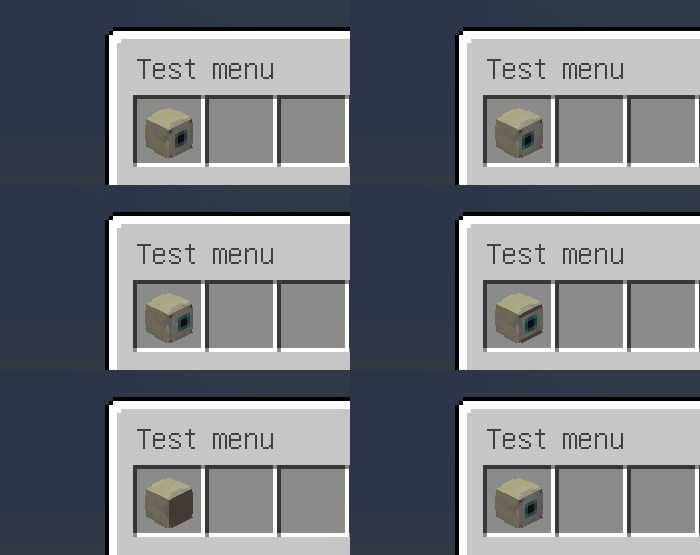
The number 1, that was specified after the name of the animation, is necessary to identify this particular button. In one menu, each item with the same animation should have different identifiers. You can use any text, but we used just a number. If several buttons on the same menu and with one animation have the same identifier, a frames of the animation will not be displayed correctly.