
Actions
Action is something that happens after specific event (for example item click or menu opening). The plugin has a lot of actions. Below is a full list of actions.
All actions
Section titled “All actions”| Name | Data type | Description |
|---|---|---|
| openMenu | String | Open a menu with the specified name |
| openMenuCtx | String | Same as openMenu but forwards context from activator of previous menu |
| closeMenu | Boolean or Number | Close current menu. If there is number instead of boolean, menu will be closed after delay in specified ticks |
| refreshMenu | Boolean or Number | Update all menu content except the title. If there is number instead of boolean, menu will be updated after delay in specified ticks |
| message | Object or String | Send message to player. There is ability to send simple text, JSON text, title, etc. |
| broadcast | Object or String | Send message to all players on server. Format similar to message action |
| miniMessage | String | (Deprecated. MiniMessage now supported by default message actions) Send message with mini-message |
| playerChat | Strings list | Send a message on behalf of the player who opened the menu |
| String | Print message in console. Useful for debugging | |
| command | Object | Execute a list of commands on behalf of a player or server |
| inputChat | Object | Request player for enter text in chat and save result in variable |
| teleport | Object | Teleport player to location |
| itemAdd | Objects list | Add any items to player |
| itemRemove | Objects list | Remove items from player’s inventory. Items will be compared by specified properties or could be just removed by slot number |
| itemClear | Objects list | Remove items from player’s inventory the same way as itemRemove, but independent of itemstack size. The count property has no effect here |
| inventoryClear | Boolean | Fully clear player’s inventory |
| bungeeConnect | String | Connect player to another BungeeCord server |
| giveMoney | Number or Object | Add money to a player. Routes through the configured economy provider. |
| takeMoney | Number or Object | Withdraw money from a player. Routes through the configured economy provider. |
| givePermission | Strings list or Object | Grant a permission. Routes through the configured permissions provider. |
| removePermission | Strings list or Object | Revoke a permission. Routes through the configured permissions provider. |
| addGroup | String or Object | Add the player to a permissions group. |
| removeGroup | String or Object | Remove the player from a permissions group. |
| lpMetaSet | Object | LuckPerms-only: set meta values on a user (metaList). Logs a warning and skips if the active permissions provider is not LuckPerms. |
| lpMetaRemove | Strings list | LuckPerms-only: remove meta keys from a user. Logs a warning and skips if the active permissions provider is not LuckPerms. |
| setGamemode | String | Set new game mode for player. All available modes names can be found here |
| setHealth | Number | Set player health level |
| setFoodLevel | Number | Set player food level |
| giveXp | Number or Object | Give XP points to a player. Goes through the levels provider. |
| takeXp | Number or Object | Take XP points from a player. |
| giveLevel | Number or Object | Increase the player’s level. |
| takeLevel | Number or Object | Decrease the player’s level. |
| sound | Object | Play sound |
| customSound | Object | Play custom sound from resource pack |
| potionEffect | Objects list | Give potion effect to player |
| removePotionEffect | Strings list | Remove potion effect from player |
| openBook | Object | Create and open a written book for player |
| setProperty | Object | Set new or overwrite existing properties for the menu item |
| remProperty | Objects list | Remove specified properties from the menu item |
| refreshItem | Multiple | Update only one menu item, without updating the entire menu |
| setSkin | Object | Set the player’s skin. Routes through the configured skin provider. |
| resetSkin | Boolean | Reset the player’s skin via the same provider. |
| addRecipe | Objects list | Add new custom recipes for crafting |
| setButton | Objects list | Set the new button to displayed menu |
| removeButton | Slot (number, range, matrix) | Remove button from displayed menu (see drag-and-drop) |
| placeItem | Objects list | For drag-and-drop. Place draggable item into draggable slot (see drag-and-drop) |
| removePlaced | Slot or Object | Remove a draggable item from the menu (see drag-and-drop) |
| Global variables | ||
| setVar | Objects list, Strings list | Create or replace global variable |
| removeVar | Objects list, Strings list | Remove global variable |
| incVar | Objects list, Strings list | Increment global numeric variable |
| decVar | Objects list, Strings list | Decrement global numeric variable |
| mulVar | Objects list, Strings list | Multiply global numeric variable |
| divVar | Objects list, Strings list | Divide global numeric variable |
| Personal variables | ||
| setVarp | Objects list, Strings list | Create or replace personal variable |
| removeVarp | Objects list, Strings list | Remove personal variable |
| incVarp | Objects list, Strings list | Increment personal numeric variable |
| decVarp | Objects list, Strings list | Decrement personal numeric variable |
| mulVarp | Objects list, Strings list | Multiply personal numeric variable |
| divVarp | Objects list, Strings list | Divide personal numeric variable |
| Special actions | ||
| delay | Object | Wrap actions block to perform they after some delay |
| bulk | Objects list | Perform many actions, even of one type |
| randActions | Objects list | Perform random actions block from the list |
| playerScope | Object | Perform actions for other player |
| For generated menus | ||
| pagePrev | Number | Switch to one of the previous page. Works only with generated menus |
| pageNext | Number | Switch to one of the next page. Works only with generated menus |
Provider selection
Section titled “Provider selection”Money, level, permission, placeholder, and skin actions all go through AbstractMenus’s pluggable provider system. Out of the box, Vault handles money / permissions, LuckPerms handles permissions / groups, vanilla XP backs the levels section, and SkinsRestorer backs skins. Drop in an addon like PlayerPointsAddon and you get a second economy provider on the same server.
The default config.conf providers.<section> value is "auto": AbstractMenus picks the highest-priority registered provider. Bundled providers register at priority 50, addon providers typically at 100, so an addon wins auto-resolution unless an operator explicitly pins a different id.
Default backend (no provider: field)
Section titled “Default backend (no provider: field)”takeMoney: 100Resolves through config.conf providers.economy. Set to "auto" (the default) to pick the highest-priority registered provider; pin a specific id like "vault" or "playerpoints" to override.
Per-action override
Section titled “Per-action override”Object form lets you name the provider explicitly. Useful when one menu mixes currencies — coins for buying items, points for the lottery:
actions { click: [ { type: takeMoney, amount: 100, provider: "vault" } // server economy { type: giveMoney, amount: 5, provider: "playerpoints" } // donor tokens ]}Server-wide default
Section titled “Server-wide default”If every menu should use PlayerPoints, edit plugins/AbstractMenus/config.conf:
providers { economy = "playerpoints"}Now the scalar form (takeMoney: 100) routes through PlayerPoints automatically.
Resolution order
Section titled “Resolution order”When AbstractMenus runs a money/level/permission action, it picks the handler in this order:
- Per-action
provider: "..."— wins outright if present. config.conf providers.<section>— used if a non-autovalue is set.- Priority-based auto-resolve — highest registered priority wins. Built-in providers register at priority 50; addons typically at 100, so addon providers win unless you pin Vault explicitly.
The same shape applies to giveLevel/takeLevel (levels), givePermission/removePermission/addGroup/removeGroup (permissions), and setSkin/resetSkin (skins). Just swap economy for the relevant section name in config.conf.
For implementing your own provider, see Provider handlers.
Message
Section titled “Message”Action for send various text information to player. For example:
message { chat: [ "Line 1", "line 2" ] title: "Title" subtitle: "Subtitle" fadeIn: 10 stay: 20 fadeOut: 10 actionbar: "&aHello" json: "{'text'='Hello'}"}This block has many parameters that can be used separately.
| Name | Data type | Description |
|---|---|---|
| chat | Strings list | Send personal message to chat |
| actionbar | String | Send text to player’s action bar |
| json | String | Send personal JSON message to chat. Works on MC 1.9+ |
| Title parameters | ||
| title | String | Send title |
| subtitle | String | Send subtitle |
| fadeIn | Number | Fade in time in ticks |
| stay | Number | Stay time in ticks |
| fadeOut | Number | Fade out time in ticks |
You can also use the message block as a simple text parameter. Then this action will send chat message to the player.
message: "Single message"JSON message can be specified not only as a string, but also using the HOCON syntax. Example:
message { json { text: "&aSome text" hoverEvent { action: "show_text" value: "&eSome text" } }}This block is equivalent to this JSON message:
message { json: "{'text':'&aSome text', 'hoverEvent':{'action':'show_text', 'value':'&eSome text'}}"}Command
Section titled “Command”Action to execute command on behalf of player or server. Example:
command { player: [ "command 1", "command 2" ] console: [ "command 1", "command 2" ]}This action will execute two commands. Commands /command 1 and /command 2 will be executed by player and same by server.
You can also execute commands only by player or server:
command { player: "command 1" }And same with console block.
By default, all commands have placeholders resolved before being dispatched. Set ignorePlaceholder: true to send the raw command string verbatim - useful when a command argument literally contains % characters.
command { console: "lp user %player_name% permission set foo.bar true" ignorePlaceholder: false // default; resolves %player_name%}Chat Input
Section titled “Chat Input”This action will close menu and ask player to enter some text in the chat. After text entered, plugin will save it into variable.
All about chat input feature read on the Chat input page.
Teleport
Section titled “Teleport”Teleport player to specified location. Example:
teleport { world: "world" x: 0.0 y: 100.0 z: 0.0 yaw: 0.0 pitch: 0.0}This action also has short version:
teleport: "world, 0.0, 100.0, 0.0, 0.0, 0.0"Add item
Section titled “Add item”Add item or items to player’s inventory. Item has the format described on the item format page. Example:
itemAdd: [ { slot: 0 material: STONE name: "My stone" }, { material: CAKE name: "My cake" }]Items without slot will be added in the first empty slot in inventory
Remove item
Section titled “Remove item”This action same as itemAdd. But items will be removed in specified slot. If slot is not specified, item will be removed by comparing with specified parameters. Example:
itemRemove: [ { slot: 0 material: STONE name: "My stone" }, { material: CAKE name: "My cake" }]Action to play sound. Below all parameters that can be specified:
sound { name: "SOUND_NAME" volume: 1.0 pitch: 1.0 public: false location { world: "world" x: 0.0 y: 0.0 z: 0.0 }}Parameter name required. All parameters are optional.
-
name- Bukkit’s name of the sound. See all sound names here -
volume- Volume of the sound. Value between0.0and1.0. -
pitch- Pitch of the sound. Value between0.0and10.0. -
public- Is this sound will be played for all near players. -
location- Location in which sound will play. Location format is the same as in the teleport action.
You can also use short format:
sound: "SOUND_NAME"In this case, the sound will play only for player in player’s location.
Custom sound
Section titled “Custom sound”Same as the sound action, but accepts a sound name from a resource pack. Example:
customSound: "name.songs_sound"When used as an object, the action accepts every parameter sound does, plus a sound category:
customSound: { name: "name.songs_sound" category: RECORDS volume: 1.0 pitch: 1.0 public: false location { world: "world" x: 0.0 y: 0.0 z: 0.0 }}name- Resource-pack sound name (e.g.name.songs_sound). Required.category- One of the values defined here. DefaultMASTER.volume- Volume. Default1.0.pitch- Pitch. Default1.0.public- Iftrue, plays for nearby players too. Defaultfalse.location- Location in which sound will play. Same shape as in the teleport action. Default: the player’s current location.
Add potion effect
Section titled “Add potion effect”Action to add a potion effect to player.
potionEffect: [ { effectType: FAST_DIGGING duration: 100 amplifier: 1 }]The format of this action is similar to the potionData item property.
Remove potion effect
Section titled “Remove potion effect”Action to remove potion effects from player. Example:
removePotionEffect: [ FAST_DIGGING, SPEED]Action above will remove two potion effects from player.
Open book
Section titled “Open book”Action to open a written book. The format mirrors the bookData item property.
openBook { author: "Peter Piper" title: "&e&lSuper Title" pages: [ "A content of the first page", "A content of the second page", "..." ]}LP meta
Section titled “LP meta”LuckPerms-only actions to read or write LuckPerms meta values on a user. They go through the active permissions provider and only fire when that provider is LuckPerms; otherwise they log a warning and skip.
lpMetaSet
Section titled “lpMetaSet”lpMetaSet { ignorePlaceholder: false metaList: [ { key: "prefix", value: "&7[Member]" } { key: "suffix", value: "&8[%player_world%]" } ]}metaList- List of{ key, value }pairs.valueis run through placeholder substitution unlessignorePlaceholderistrue.ignorePlaceholder- Iftrue, send the rawvalueverbatim. Defaultfalse.
lpMetaRemove
Section titled “lpMetaRemove”Removes meta keys from the user. Accepts a single string or a list:
lpMetaRemove: "prefix"lpMetaRemove: [ "prefix", "suffix" ]Variables
Section titled “Variables”These actions for create, update, delete, and do some math with variables.
There are two version of each variable-related action - global and personal. For example there is setVar and setVarp actions for global and personal variables, respectively.
Global vars
Section titled “Global vars”Actions to interact with global variables.
Action to create or update global variable. It can be specified in one of the following format:
setVar: "<var_name>::<value>"setVar: "<var_name>::<value>::<time>"setVar: "<var_name>::<value>::<replace>"setVar: "<var_name>::<value>::<time>::<replace>"Where:
<var_name>
Name of the variable
<value>
Any value of variable. String or numeric.
<time>
Optional. Variable lifetime.
<replace>
Optional. If false and variable with this name exists then it won’t be replaced with new value. By default is true
Simple example:
setVar: "my_var::Some data"This action will create global variable with name my_var and string value Some data.
Temporal variable
Section titled “Temporal variable”You can create a temporary variable. A temporary variables will be automatically removed after specified time. To set a lifetime for the variable you need to add time parameter. Example:
setVar: "my_var::Some data::10m"Here, we created and set lifetime in 10 minutes for the variable my_var. You can specify lifetime by seconds (s), minutes (m), hours (h) and days (d). Also you can combine it. For example:
1d 12h
1 day (24 hours) and 12 hours
2h 30m
2 hours and 30 minutes
10s 10h
10 hours and 10 seconds
Rewriting safety
Section titled “Rewriting safety”If you want to protect a created variable from rewriting, you can use the last <replace> argument:
setVar: "my_var::Some data::false"Here, the false is a <replace> argument, not <time>. If we use boolean in third argument, and there is only 3 arguments, plugin suppose this is a <replace>. Note, that this is not protects variable from rewriting by other action, where replace is true.
Remove
Section titled “Remove”Action to remove global variable. Example:
removeVar: "my_var_name"This action has only one argument - name of the global variable.
Math actions
Section titled “Math actions”There is several actions to do math operations with variables:
-
incVar- Increment variable -
decVar- Decrement variable -
mulVar- Multiply variable -
divVar- Divide variable
If variable with specified name doesn’t exists, plugin will create a new one with specified value.
Below is the example of using incVar action.
incVar: "my_var::2"This action will increment variable my_var on 2.
Other math actions has the same format. Some examples:
decVar: "my_var::10"
mulVar: "my_var::3"
divVar: "my_var::2"
Full format
Section titled “Full format”All variable-related actions has full format. These actions can be specified as objects. For example, this is format of setVar action:
| Parameter | Type | Description | Required |
|---|---|---|---|
| name | String | Unique name of the variable | true |
| value | String | Value of the variable | true |
| time | String | Variable lifetime | false |
| replace | Boolean | If false and variable with this name exists then it won’t be replaced with new value. By default is true | false |
| player | String | Create personal variable for specific player. This is legacy part of this action. Use special actions for personal variables instead | false |
Example:
setVar { name: "myvar" value: "Hello, world"}The same for other actions, like removeVar and all math actions.
This format is still works for backward compatibility or in cases when you have big and complex string to save.
Personal vars
Section titled “Personal vars”Actions to interact with personal variables.
Action setVarp used to create personal variable for player who opened menu. This action has same format as the global setVar action.
Example:
setVarp: "myvar::Hello, world"Temporal variable
Section titled “Temporal variable”Same as the Temporal variable section for global variables, but using setVarp action.
Rewriting safety
Section titled “Rewriting safety”Same as the Rewriting safety section for global variables, but using setVarp action.
Remove
Section titled “Remove”To remove personal variable, use the removeVarp action. This action has same format as for global variables:
removeVarp: "my_var_name"Math actions (personal)
Section titled “Math actions (personal)”There is several actions to do math operations with personal variables:
-
incVarp- Increment personal variable -
decVarp- Decrement personal variable -
mulVarp- Multiply personal variable -
divVarp- Divide personal variable
All arguments and usage similar to the Math actions of global variables.
incVarp: "myvar::2"Multiple variables interaction
Section titled “Multiple variables interaction”In some cases you need to set, remove, or change multiple variables. For this, you can use any variable action as list. Example:
Example 1. Set multiple global variables.
setVar: [ "variable_1::Value of variable 1", "variable_3::Value of variable 2", "variable_3::Value of variable 3"]Example 2. Remove multiple global variables.
removeVar: [ "variable_1", "variable_3", "variable_3"]Example 3. Increment multiple personal variables.
incVarp: [ "var_1::2", "var_3::5", "var_3::8"]This action is a kind of wrapper for other actions. It has two parameters:
-
delay- Delay in ticks before performingactionsblock. -
actions- The actions block, similar to all others. All actions and rules inside will be performed after the time specified indelayblock has expired.
Example for click block:
click { message: "Hi!" delay { delay: 20 actions { itemAdd { material: CAKE name: "&bYour cake" } } } closeMenu: true}In this example, the sequence of execution will be as follows:
- Sends message “&aHi!”.
- Menu closes.
- After 20 ticks, a cake will be added to the player’s inventory.
Actions wrapper to perform many actions with similar names in a certain sequence. It takes a list of individual actions groups.
bulk: [ { message: "Hello!" sound: ENTITY_VILLAGER_NO }, { sound: ENTITY_VILLAGER_YES }, { sound: BLOCK_NOTE_BLOCK_PLING }]Each element of the list is a separate group of actions, the same as in the usual actions block. This division into groups allows you to perform similar actions several times.
Random actions
Section titled “Random actions”Actions wrapper to perform one, randomly selected actions block. When the time comes to execute the randActions action, this will execute random actions block from list. Example:
randActions: [ { message: "Action 1" }, { message: "Action 2" }, { message: "Action 3" }]After performing this action several times player will see different messages.
Player scope actions
Section titled “Player scope actions”If you need to execute some actions for another player, you can use special actions wrapper called playerScope. Example:
playerScope { name: "%player_name_placeholder%" actions { message: "Hello, %player_name_placeholder%" }}The message inside actions block will be executed for player who found by name, entered in name field.
Here actions is a simple actions block. But all actions or rules inside will be related to found player. Example with additional rules:
playerScope { name: "%player_name_placeholder%" actions { rules { gamemode: SURVIVAL } actions { message: "Hello, %player_name_placeholder%" } }}Here, the rules block will check found player, not player who opened menu.
Set skin
Section titled “Set skin”To manipulate skins, AbstractMenus uses the SkinsRestorer plugin.
To set the skin to the player, you need to have its texture and signature. You can get them, for example, by uploading an image to MineSkin. Next, copy the data from the fields “Texture Data” and “Texture Signature” into the corresponding parameters of setSkin action.
setSkin { texture: "ewogICJ0aW1lc3RhbXAiIDogMTU4ODQxODUwNjMzOSwKICAicHJvZmlsZUlkIiA6ICJiMGQ0YjI4YmMxZDc0ODg5YWYwZTg2NjFjZWU5NmFhYiIsCiAgInByb2ZpbGVOYW1lIiA6ICJNaW5lU2tpbl9vcmciLAogICJzaWduYXR1cmVSZXF1aXJlZCIgOiB0cnVlLAogICJ0ZXh0dXJlcyIgOiB7CiAgICAiU0tJTiIgOiB7CiAgICAgICJ1cmwiIDogImh0dHA6Ly90ZXh0dXJlcy5taW5lY3JhZnQubmV0L3RleHR1cmUvMmQxNWQxNmE5OTU3NmRiZGE5NWIxMjA3ZmU1NGQ0MjE0Njg4MGMzNzkwNTMwOWViOTg4ODIxMDRhYzcwZjFkNSIKICAgIH0KICB9Cn0=" signature: "dHlo+kNagxVCC5CscZrQB5iyQvCBSvG+onsB+cl2qSChe+mILMLWdLi8+stVYo7+X4mjJ9n6F7REW0ndf4fYR72x8xOdOhqgwwtFaA7dyb+NI5AtTQNoch0Tz91FqKWznTWVHBaRQB/eiBpjQz6X1H/dJDAvuN5O6gVLvHcBoBNnQ/ZLVYGrVoK3vOykbEW9NECVCu62bsroVZ0mRMaK35wVP6Wh7srkXGOoyiWuX/gqFf1W/Gpum2SsBx06166Itbu1DNs99ST+Uqx3Vv2THA+CKEpYG7tXPZZ1JSw7Pgk6KzIKyQKmIgL3SphEbzNT6XcUQlpsdzp8q3LECeWLqqk1rQwNqWmduUdsbIiRT4YSwNLyFeClE3NcPGxrPgWXCSfg+u5kHt4+n+u3s469R6DdTGXmtz+Tx06iUzwAgBAd4iNN/rDTranVZ9JokOgrNOQc/uUV4HFxYbrDAh4/LnFP4m/V7HSp5VGZye/Z1yzHtECKZFhId4iTQacckD9HT6vzvT7kH7aM7pkOzG12WkVPYBJBObgXoBUTYlAbCj18DUerT7Fx3m0vi0ThWU/fYmj8XqUFOgmzUFXeq165I0wQhpAv3JiCA0+tVCpndzD6J4MQloBRFHS1gJmI9XYGlK8G24FP8GLljW5RLfHDc672UVzdwI3m4vuFeraLjl4="}Add recipe
Section titled “Add recipe”Action to add recipe to player. This is a list of objects where each object is a recipe.
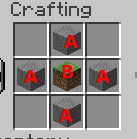
addRecipe: [ { key: "my_recipe" shape: [ " A ", "ABA", " A " ] ingredients { A: STONE B: GRASS } result { material: EMERALD name: "Super emerald" } }]There is several required parameters:
-
key- Unique id (name) of the recipe. -
shape- Workbench cells. It shows in which shape you want to layout the objects. -
ingredients- Set ingredients in the<key>: <material>format.AandBare those designations from the shape parameter. Only materials supports. -
result- The item, which player receive after crafting.
As a result, in order to craft our item, you need to put the corresponding items in the desired cells, as shown in the picture.
Set item property
Section titled “Set item property”Action to add property to the menu item. Example:
items: [ { slot: 0 material: STONE name: "Properties test" click { setProperty { glow: true } } }]After click the item will glow.
This action also allows you to change the properties of other items in the opened menu. To do this, you need to specify the slot in which it is located. Example:
items: [ { slot: 0 material: STONE name: "Button 1" click { setProperty { slot: 1 // Slot of the another button glow: true lore: "You've clicked on Button 1" } } }, { slot: 1 material: STONE name: "Button 2" }]Remove item property
Section titled “Remove item property”Action to remove the specified properties from the menu item. To do this, you must specify a list of names for these properties. This action, like setProperty, only affects the copy of the menu that the player has opened. It does not change the properties of items globally.
items: [ { slot: 0 material: STONE name: "Button 1" glow: true click { remProperty: [ "glow", "name" ] } },]If you click on this button, only material property will remain. If you reopen the menu, the deleted properties will return.
You can remove the properties of another item in the opened menu. To do this, the remProperty block needs to be turned into an object with two elements - the slot parameter and the list of property properties.
items: [ { slot: 0 material: STONE name: "Button 1" click { remProperty { slot: 1 properties: [ "glow", "lore" ] } } }, { slot: 1 material: STONE name: "Button 2" glow: true lore: [ "This is a button 2" ] }]Now when you click on Button 1 you will remove the glow and lore properties of Button 2.
Refresh item
Section titled “Refresh item”Refresh only one item from the whole menu. This is very useful for optimizing your menus because instead of updating the entire menu with all items, you just update one item, which makes it work faster and reduces the server load.
This action has three modes.
Mode 1. Refresh current
Section titled “Mode 1. Refresh current”Refreshes the current menu item. Example:
items: [ { slot: 0 material: STONE name: "Xp is: %player_xp%" click { giveXp: 100 refreshItem: true } },]Mode 1. Delayed refresh
Section titled “Mode 1. Delayed refresh”Refresh the current menu item with a delay specified in ticks.
items: [ { slot: 0 material: STONE name: "Xp is: %player_xp%" click { giveXp: 100 refreshItem: 20 // Ticks instead of 'true' } }]Mode 1. Refresh another item
Section titled “Mode 1. Refresh another item”Update item in the specified slot. Optionally, you can specify a delay.
items: [ { slot: 0 material: STONE name: "Button" click { giveXp: 100 refreshItem { slot: 1 delay: 20 // Optional } } }, { slot: 1 material: STONE name: "Xp is: %player_xp%" },]Set menu button
Section titled “Set menu button”This action will add interactable item to the menu. Example:
setButton { slot: 4 material: CAKE name: "New button" click { message: "&aHello!" }}After executing this action, specified button will be added to the slot 4. If some button already was in this slot, it will be replaced.
Remove menu button
Section titled “Remove menu button”This action will remove displayed button from opened menu. This action accepts slot in any available format. Example:
removeButton: 4This action will remove menu item from slot 4 if it exists. You can also use other slot formats:
removeButton: "0-8"This action will remove items from slots 0, 1, 2, ..., 8